
Switching to Jobalong
Smart Migration Tool
When you switch job management software, you still need to know who’s booked for Monday, how to get into each property and what your team did on the last visit. Our Smart Migration Tool helps you bring those details into Jobalong from Jobber, ServiceM8, Fergus, FieldInsight or another provider that exports to CSV.
Bring across your customer list, job history and upcoming work. You can see how the bookings will look on your calendar, choose which regular services should keep repeating and match jobs to the people who’ll be doing them.
Bring your records across from your old system
Export your customers and jobs, including completed work and future bookings. If your provider keeps individual visits in a separate report, export that too. Keep the original job numbers, site addresses, notes and appointment times in the files.
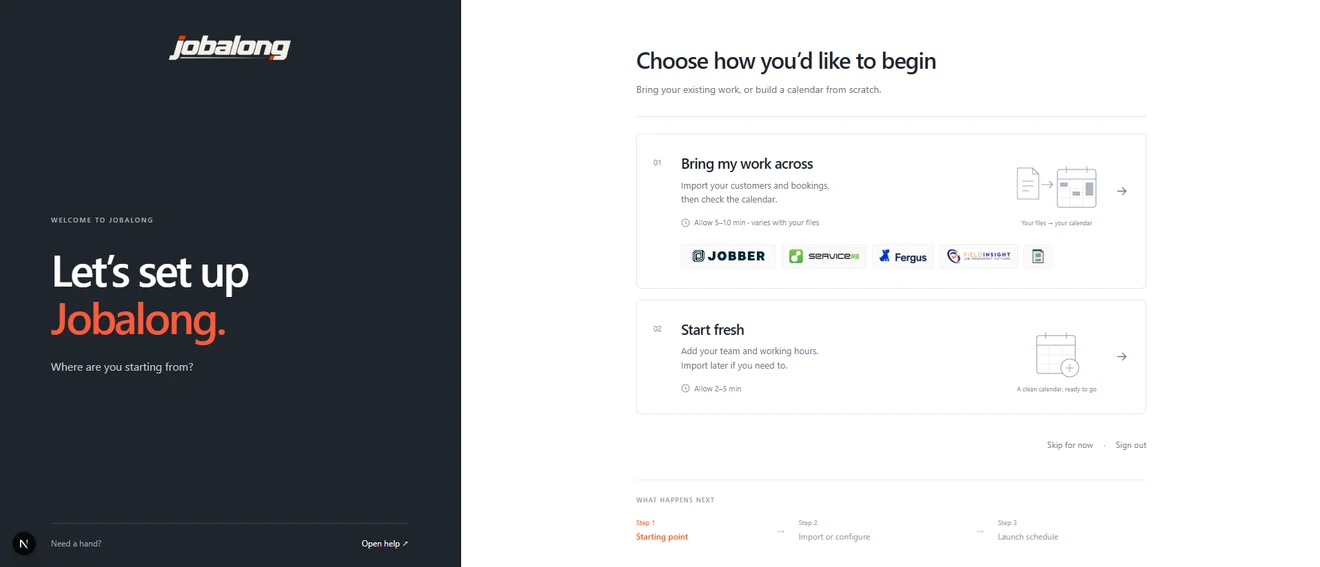
In Jobalong setup, choose Bring my work across, select your old provider and add your files together. If you run the business from a spreadsheet, save each sheet as a CSV with the column names in the first row, then choose CSV / Excel.
Match your customer and job details
Jobalong reads your column headings and suggests where the details belong. You can review the matches for customers and jobs. For example, if your file has both a billing address and a site address, check that the address on the booking is the one your worker needs.
Use the dropdown to change a match and check the values shown from your file. You can keep an extra column with the original import if you want to refer back to it later.
See your bookings on the calendar
Open the calendar preview and look at the week your team will start using Jobalong. Select a booking to see the customer, service address, visit time and notes together. If the wrong detail has come across, go back to the column matches and change it before you import.
A job with a date and appointment time can go on the schedule. A job still waiting on the customer to pick a time can come across as unscheduled work. If a record needs attention, the preview flags it so you can see why it hasn’t appeared.
Choose which regular visits should continue
When Jobalong finds a pattern in your visits, you decide what happens next. For a customer you still service every fortnight, choose to continue the repeat, then check the frequency and next visit date before you confirm.
If the contract has ended, you can keep the past visits together as history. Jobs that happened to fall on similar dates can stay as separate appointments.
Finish the import and check what came across
Once you’ve checked the calendar and any repeating work, continue to import the records into your workspace. The completion summary shows how many customers and jobs came across, which records already matched and how many recurring schedules were created.
Open Review your import for the original files and the result for each row. If a booking was held back, you can see which file and row it came from and what needs attention. You can also download the import report.
Put the new schedule to work
Continue onboarding to set your calendar hours and add your team. When Jobalong recognises a worker’s name from the export, link it to their employee profile. You can assign their unassigned upcoming jobs at the same time, or keep a former employee’s name in the job history.
Before the first run, compare the upcoming week with your old calendar, including any appointments moved since you exported. Set a time for the office to start taking new bookings in Jobalong. Each worker can then open My Jobs on their phone and see where they’re going and what’s booked.
See what your workers see on their phonesCommon questions
My provider isn’t on the list. Can I still switch?
Yes, if you can export your customer or job records to CSV. Choose CSV / Excel when you upload the files and match your headings to the customer and job fields.
We use Jobber and some jobs have several visits. Which file do I need?
Include your visit report alongside the jobs and clients exports so the individual appointments are available to match. If the visit report includes a price for the whole job, check the price column before assigning an amount to each visit.
Why are some of my ServiceM8 or Fergus jobs in the booking tray?
The ServiceM8 job list uses Date for the day the job was created. A Fergus job export can also contain the job details without its appointment time. If a visit time is missing, you can open the job in the booking tray and schedule it using your old calendar.
What happens to the invoice history in my export?
Imported document summaries are kept for reference. You can look back at them without creating an invoice or recording a payment in your Jobalong books.
What if a booking changes in FieldInsight while we’re moving?
Keep the original job IDs in your newer export. The workspace owner can compare changes to upcoming or unscheduled jobs, review the old and new details, and choose which updates to apply.
Can I get a copy of my records once we’re using Jobalong?
Yes. You can export your customer list and download jobs as a CSV. Filter the jobs first if you only need a particular date range or status.