
My Jobs
Mobile Field service app
Once you book a job and assign a worker, it appears in My Jobs on their phone. Before they leave for the first visit, they can see who they’re booked with, where they’re going and what the customer needs done.
On site, your worker can tick off the work, add photos and mark the job complete. The office can open the same booking and see how the visit went.
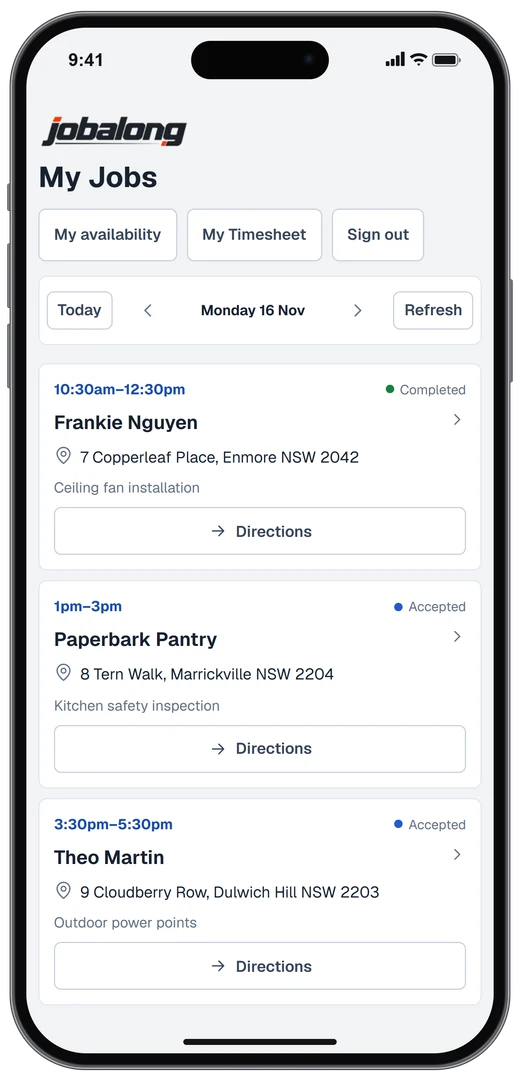
See what’s booked for the day
Open My Jobs to see your visits in time order. Each card shows the customer, booked time, address and service. Tap a job to read the instructions the office added when they took the booking.
If the office moves an appointment or adds a job while you’re out, tap Refresh to pick up the change. You can also look ahead to tomorrow if you need to pick up parts before the first job.
See how the office schedules a jobFind the property and contact the customer
Tap Directions on the job card to open the booked address in maps. Check the site notes for details like which driveway to use or where to collect the key.
If the gate is locked, tap Call to speak to the customer. Running a few minutes late? Tap Text to open a message with the customer’s mobile number already filled in.
Keep notes and photos with the job
Open the service checklist and tick off each task as you go. If the customer asks about getting a quote for further work, add a note while you’re there so the office knows what to follow up.
Attach a photo of the finished installation to the booking. When the customer calls back, the office can open that visit and see the photo alongside your notes.
Sign off before you leave
Tap Job sign-off when the work is done. Your business can choose which details to ask for, such as how long the visit took or how much the customer paid on site.
Mark the job status as complete so the office can see it’s finished on the schedule. If you invoice from the office, the person preparing the invoice can check what the worker recorded before sending it.
See how invoicing worksRecord hours from the field
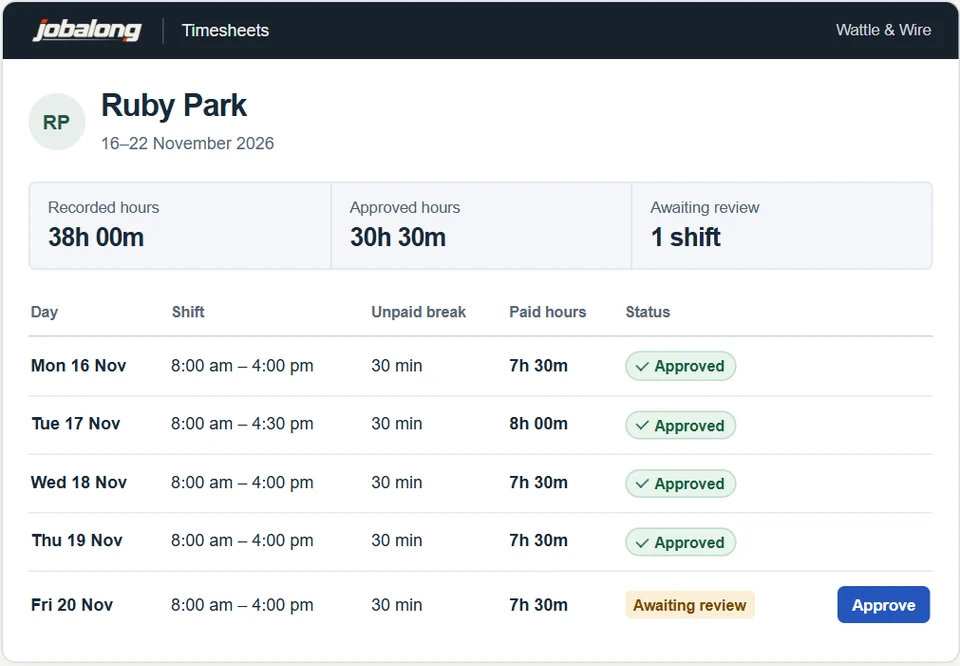
Workers can clock in and out from My Timesheet on their phone or enter their hours manually. At the end of the week, open the office dashboard to review each worker’s hours and approve them.
Common questions
Do my workers need to download anything?
They can sign in to Jobalong in their phone’s browser and open My Jobs with their own account, or download the app from the App Store or Google Play.
Will each worker see just their own run?
Yes. Each field worker sees the visits assigned to them. The office uses the scheduler to see the whole crew. Owner operators can view both the schedule and their run sheet from the field services app.
I’ve swapped two workers around. Do I need to send new run sheets?
Reassign the visits in the scheduler and ask both workers to tap Refresh in My Jobs. Each will see their updated run.
What if there’s no reception at the property?
Open the day’s run while you have reception so it’s saved on your phone. You can still read those visits and add a job note if the signal drops. It shows as pending until it syncs with the office.
Can the office see a photo from the job before the worker gets back?
Yes. Once the photo has synced, the office can open it on the booking. That’s handy if a worker needs to show you a damaged fitting while they’re still at the property.
One of my workers forgot to clock on. Can they still put their hours in?
Yes. They can enter the shift manually in My Timesheet. You can review those hours with the rest of their week before approving them.