
Quotes and invoices
Quoting and invoicing software
When a customer asks for a price, put the work and costs together in Jobalong and send them a link to the quote. They can read what’s included and approve it on their phone. Once they give you the go-ahead, turn the quote into a booking with the agreed work and prices already filled in.
When the job is done, you can send the customer an invoice with your logo, bank details and payment due date. The office can see which jobs still need an invoice, which customers have paid and how much is left to collect.
Put a price on the work
Choose the customer and the property you’re quoting for, then describe what you’ll do. Pick a service from your catalogue or add your own line. Give each item a quantity and a unit price, and Jobalong works out the total.
If you’re supplying parts and charging for labour, put them on separate lines so the customer can see what’s included. Save the quote as a draft if you’re still waiting on a price from your supplier.
Let the customer approve the quote online
When the quote is ready, select Create approval link. Copy the link into an email or text and the customer can open it on their phone. They’ll see your business name, the property address, the work you’ve quoted and the total.
To go ahead, the customer enters their name, confirms the work and price, and taps Approve quote. Open Quotes to see who approved it and when.
Book the work once the customer says yes
Open the approved quote and select Convert to booking. The customer, address, scope of work and quoted items carry across to the booking tray.
If you’ve agreed on a date, move the booking onto the schedule and assign a worker. If the customer still needs to confirm a time, leave it in the tray until you’re ready.
See how scheduling worksSend an invoice for the completed job
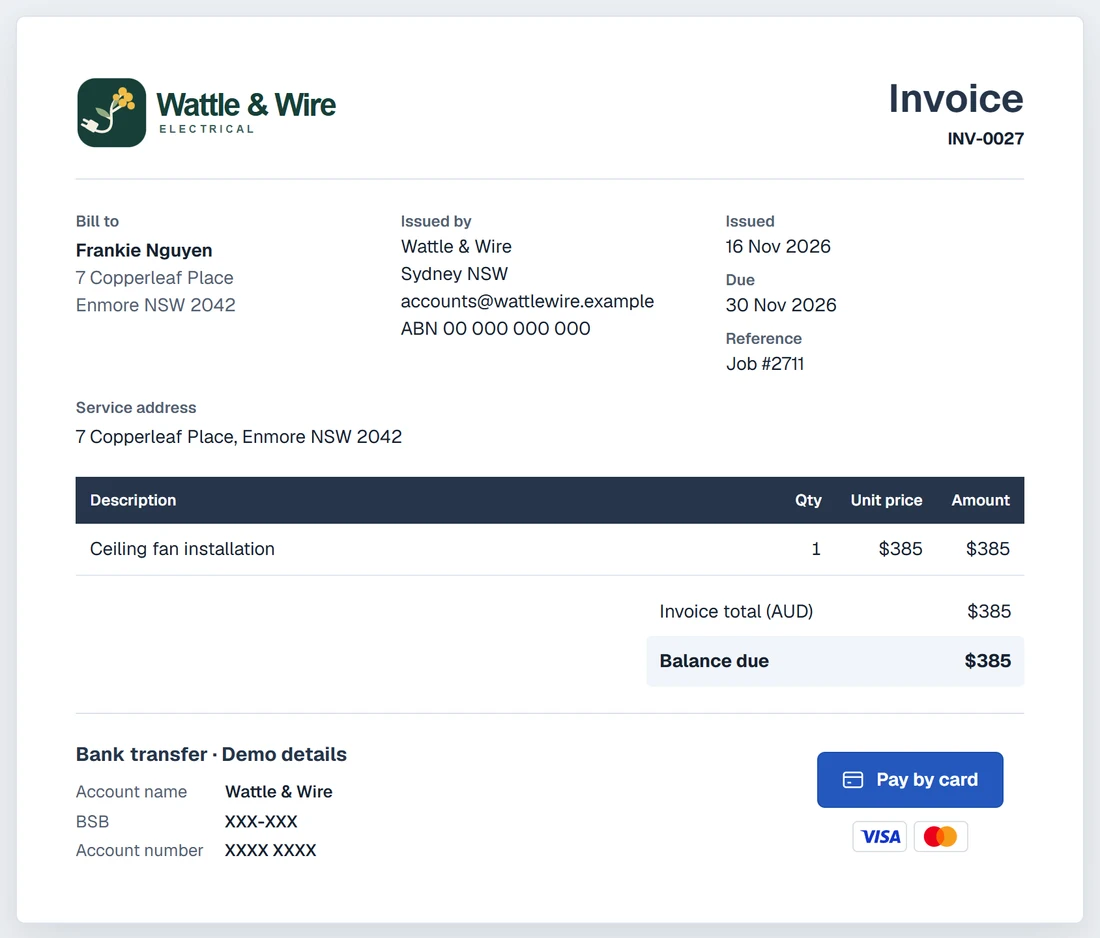
If you handle invoicing from the office, open Ready to invoice and choose the completed job. Check the items and due date, then issue the invoice and send the customer their link. They can open it in their browser or download a PDF.
Add your logo, ABN and bank details so customers know who the invoice is from and where to pay. Connect Stripe or Square and enable card payments on the invoice, and the customer can select Pay by card.
See what’s paid and what’s still owing
When a customer pays by bank transfer, open their invoice and record the amount received. If they pay part of the bill now and the rest next week, record each payment as it comes in. The balance shows what’s left to pay.
In Sales invoices, filter for unpaid invoices when it’s time to follow up. The list shows each customer’s outstanding balance and flags overdue invoices.
Common questions
Do my customers need a Jobalong account to approve a quote?
No. They open the link you send, check the work and price, and approve it in their browser. They can also download a PDF for their records.
I’ve sent the quote and the customer wants to change the work. What do I do?
While the quote is waiting for approval, select Withdraw link. Edit the draft and send a new approval link so the customer signs off on the revised price.
The customer has approved the price but hasn’t picked a date. Can I book it later?
Yes. Convert the quote to a booking and leave it unscheduled. The agreed work stays in the booking tray until you arrange a time.
Can I invoice a regular service if I didn’t quote it first?
Yes. Open the completed booking and prepare the invoice from the job. You can check the items and prices before you issue it.
I do my invoicing on Fridays. How do I find the jobs I’ve missed?
Open Ready to invoice, choose the week’s service dates and select To invoice. You’ll see completed jobs that still need an invoice, including drafts you started earlier.
A customer paid half by bank transfer. Can I see how much to chase up?
Yes. Record the transfer against their invoice. The remaining balance stays on the unpaid list so you know how much to follow up.