
Scheduling and dispatch
Job scheduling software for Australian service teams
When a customer calls, open your Jobalong schedule and see who’s available, where your team is working and when you can fit the job in. Make the booking while you’re on the phone and your field worker can open it with the address, service details and site notes in their app.
Use the same calendar to plan regular visits, move a job when plans change or fill a cancellation with a customer who’s happy to move forward.
Easy view schedule
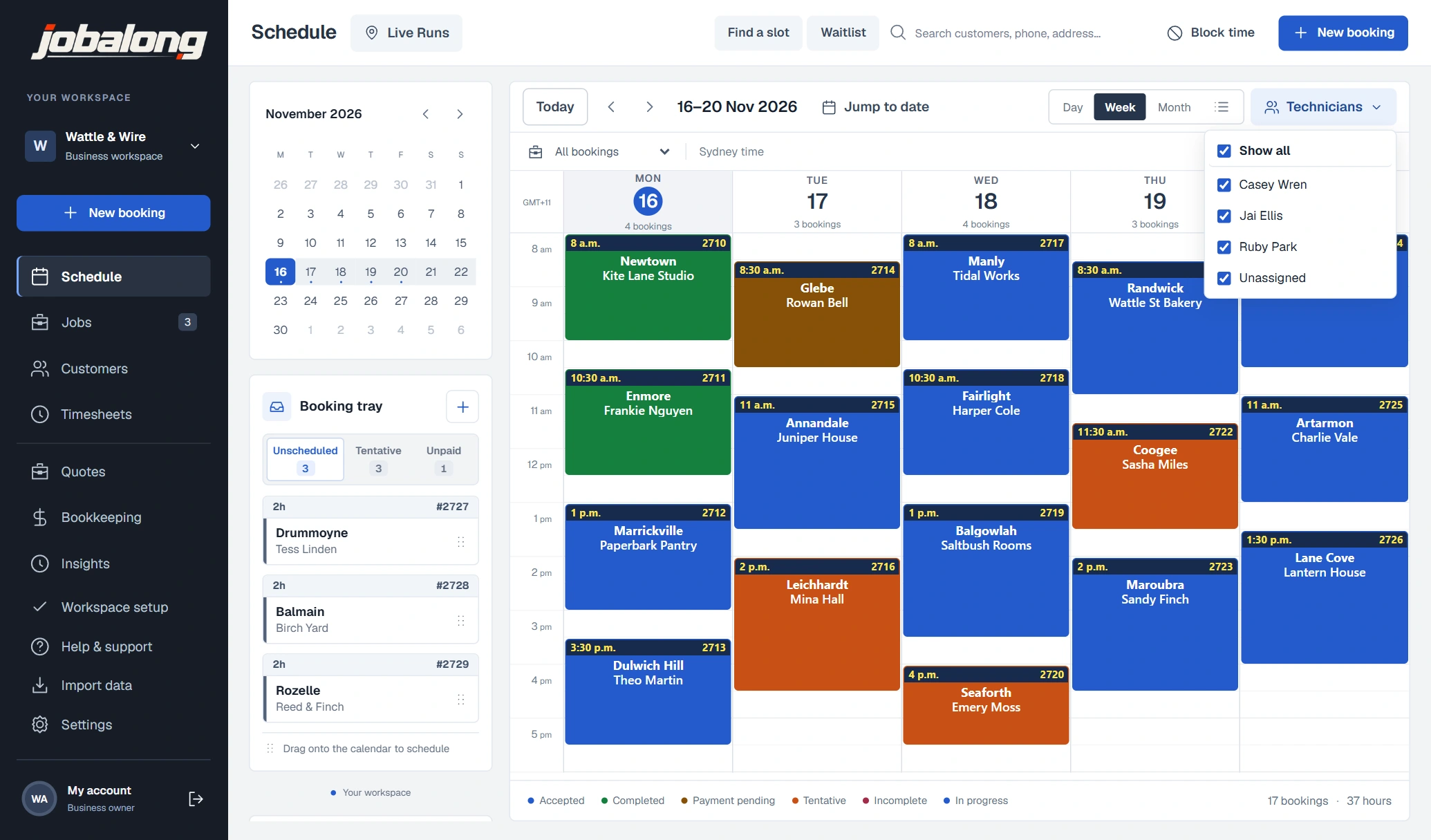
Use the week view to see how each day’s run fits together, switch to the day view for a busy morning or look further ahead with the month view. Filter by technician to see one person’s run. Each job card shows the time, customer and suburb, with colour coding so you can see the job status at a glance.
Block out time for leave, training or a vehicle service so the office can see it when taking bookings. If an appointment moves, drag the job to its new time or open it to edit the details.
Easy booking flow
Select a free space on the calendar, enter the customer and service details, and hit Save. If it’s a returning customer, use the smart search to find their record and choose the right property. Pick the service from your catalogue or enter the details for a one-off job.
If the customer still needs to confirm the date, save the job as unscheduled. It stays in the booking tray until you’re ready to drag it onto the calendar. Once you assign a worker, they can open the visit online or in the field services app.
See the worker’s run sheetFind a gap near existing work
Our smart booking feature helps you offer customers a time when your team is already working nearby. Open Find a slot, enter the customer’s suburb and how long the job will take. Jobalong checks your schedule and shows you which days and times have a suitable opening.
Say a customer in Coogee needs a 90-minute visit. You can see whether a technician has time before or after another job in the area. Choose the opening that suits the customer and start the booking from there. Keeping those visits close together cuts down on travel and helps you get more out of the day.
Fill an opening after a cancellation
During a busy week, the first appointment you can offer might be later than the customer wants. Tick Customer would take an earlier slot on their booking to add them to the cancellation list.
When another job cancels, open the waitlist and select the opening. Jobalong shows you which customers have jobs that fit the available time and area. Give one a call and, if the new time suits, move their existing booking straight into the gap.
Set up repeat visits
For regular work, set how often the service repeats when you make the booking. If you set it to repeat on completion, Jobalong can create the next visit when your worker finishes the job, carrying the booked duration and technician across.
If the customer needs to move one visit, open that booking and change the date. If they want to change how often you come back, update the repeat interval too.
Common questions
I’m out on a job. Can I check the rest of the week on my phone?
Yes. Open the mobile scheduler to see the week’s appointments, suburbs and job lengths. You can also jump to a future date while you’re talking to a customer.
Can I book the customer in now and decide who’s doing the job later?
Yes. Give the job a date and time and leave the technician unassigned. It stays on the calendar so the office can see the booking while you decide who will take it.
What if the customer wants the work done but hasn’t picked a date?
Save it as unscheduled. The customer details, service and notes stay together in the booking tray. When they call back, drag that job onto the calendar.
One of my customers manages three properties. Can I book the right address without setting them up again?
Yes. Search for the customer, select the property you’re visiting and add the service. Your worker sees the address and access notes for that site.
Can I look for a gap with the technician who did the last service?
Yes. In Find a slot, select that technician, then enter the suburb and job length. You’ll see openings in their schedule so you can offer the customer a return visit with someone who knows the site.
If I put someone on the cancellation list, do they keep their original appointment?
Yes. Their original booking stays in place while they wait. Once you’ve spoken to them and confirmed the earlier time, select Move booking to change it.